

 Free
Free
Keep your notes for free.
5
page scans a week
- Highlight and underline detection
- Unlimited notebooks, sections and notes
- Notes and covers on all your devices
- PDF export of any notebook
- Share 1 of your notebooks
Photograph the lines you mark. Keep them in a notebook for each book, ready to find again.
A highlighter, the way you always mark a book.
Mark as many passages as you like.

Tap + in your notebook and choose note / quote from photo.

Hold your iPhone over the page. One photo.

Looking for highlights…
The page is read right on your iPhone.

Each marked passage arrives as a note, ready to check.

Tap a passage and drag its edges to fix it.

Swipe left to make it a quote.

Tap Done. Both land in Walden, each with its page.
Notes stay notes. Quotes become block quotes. Each keeps its page.

Works offlineDeleted a notebook? You have 30 days to bring it back.Export any notebook as a PDF, on any plan.
The Library is sorted by recently edited.

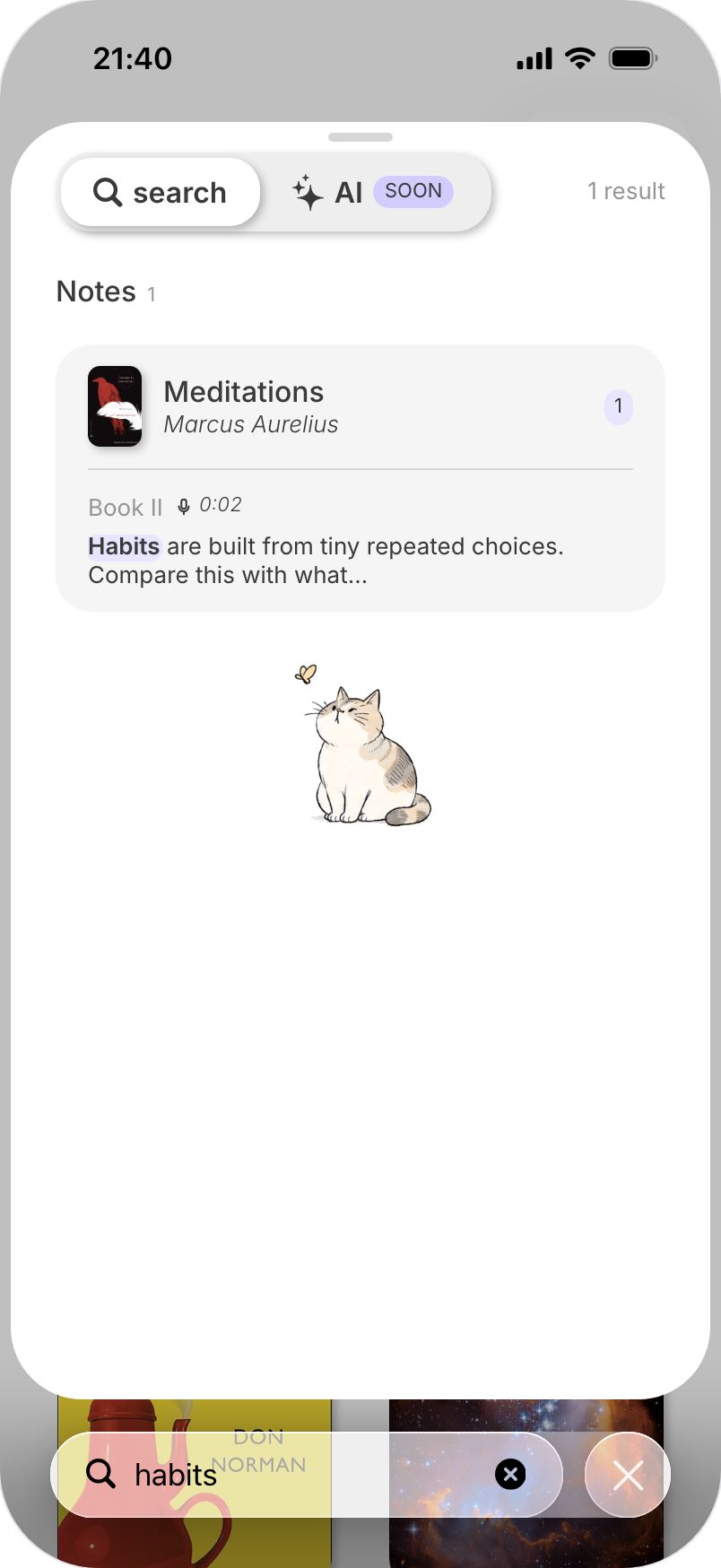
Type part of a word to search all your notebooks.
“delib” finds “live deliberately”.
One tap takes you to the right notebook.


Nine more things to do with what you read.
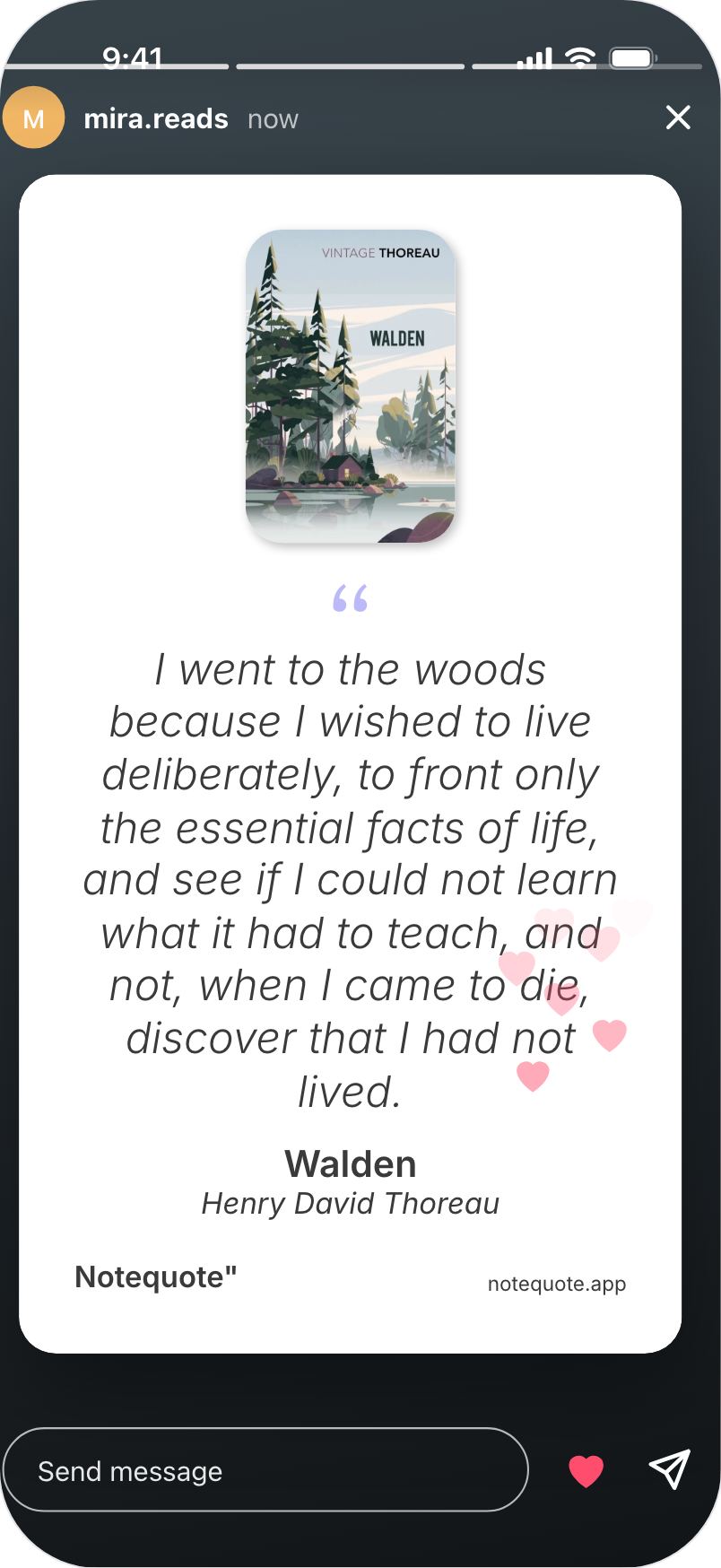
Turn a line into a picture for a story, a post or a message.
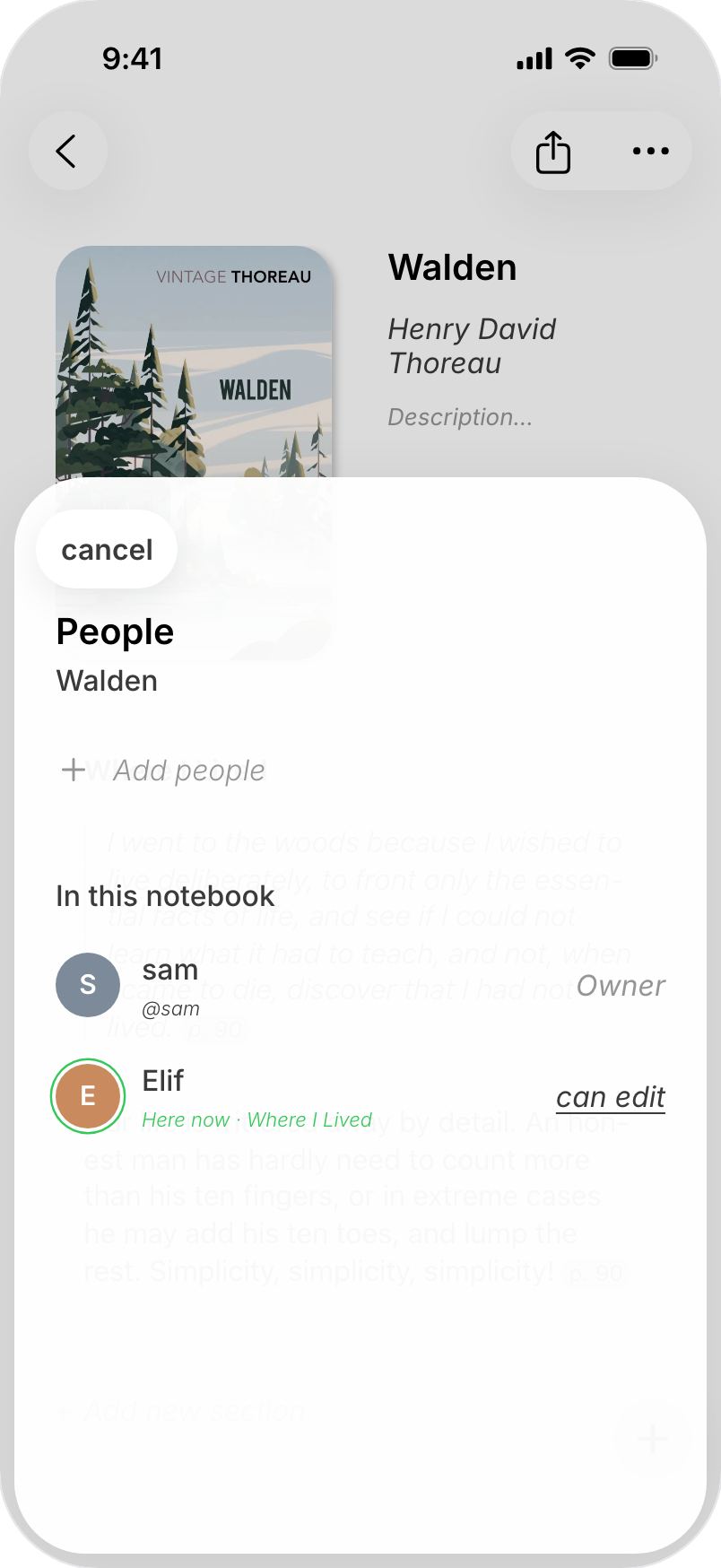
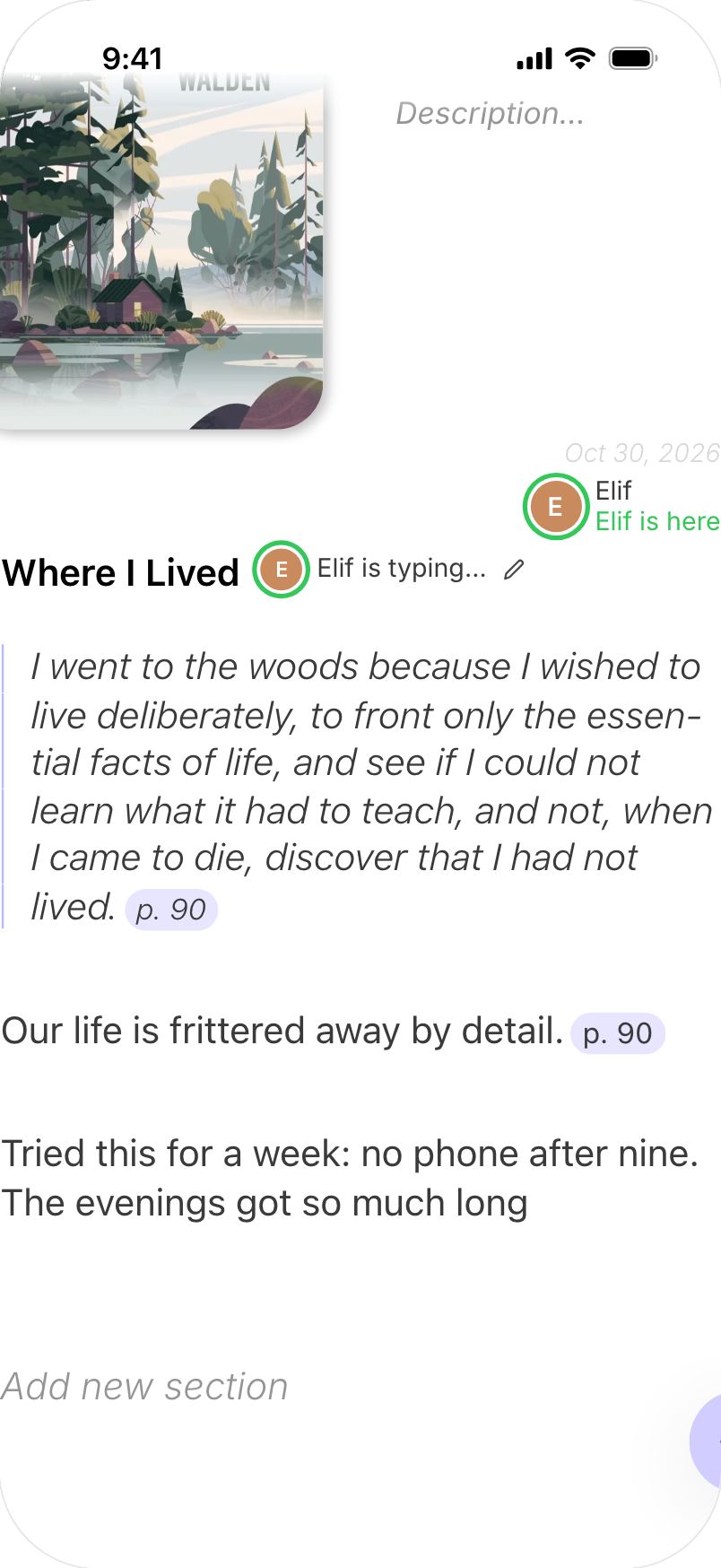
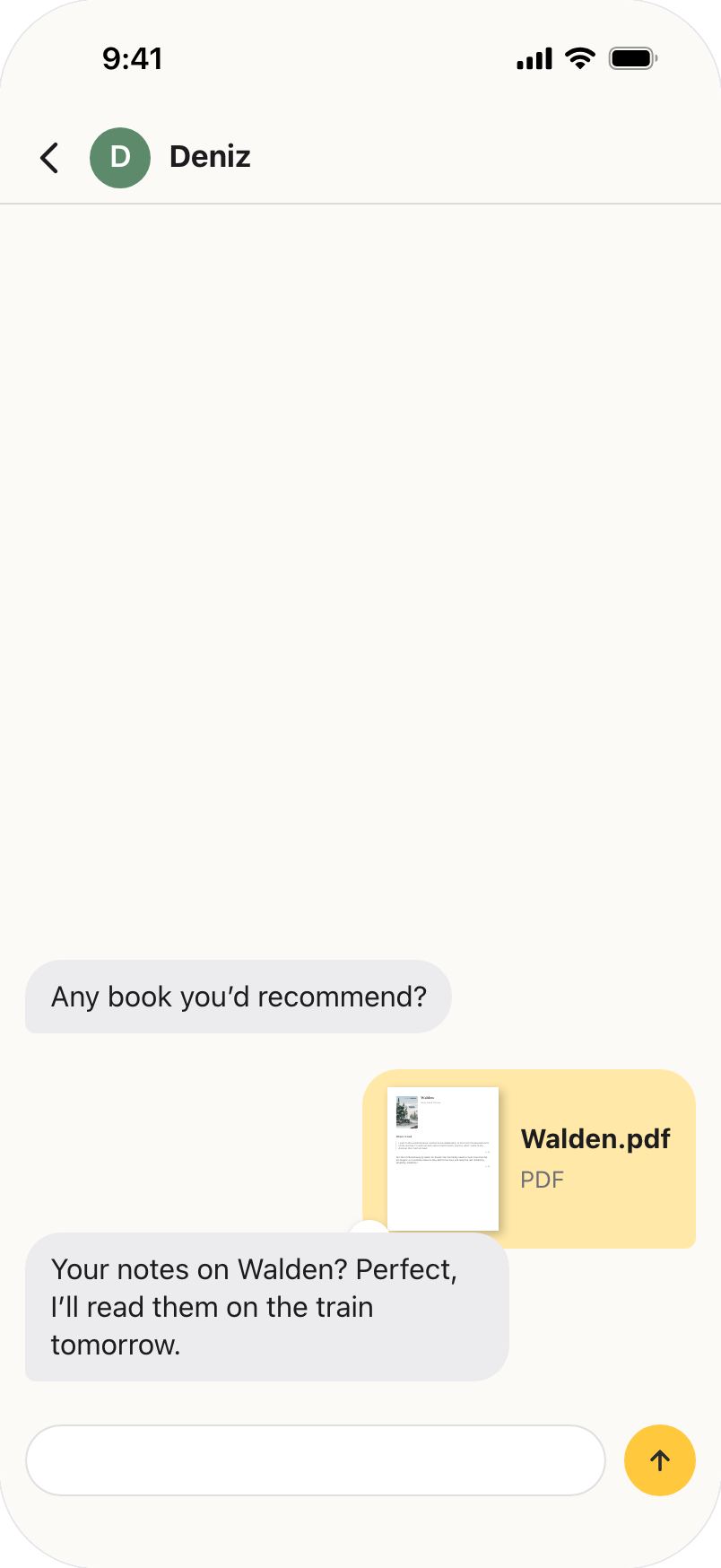
see how it works: Quote cardsRead together in one notebook, and see each other’s notes as they arrive.
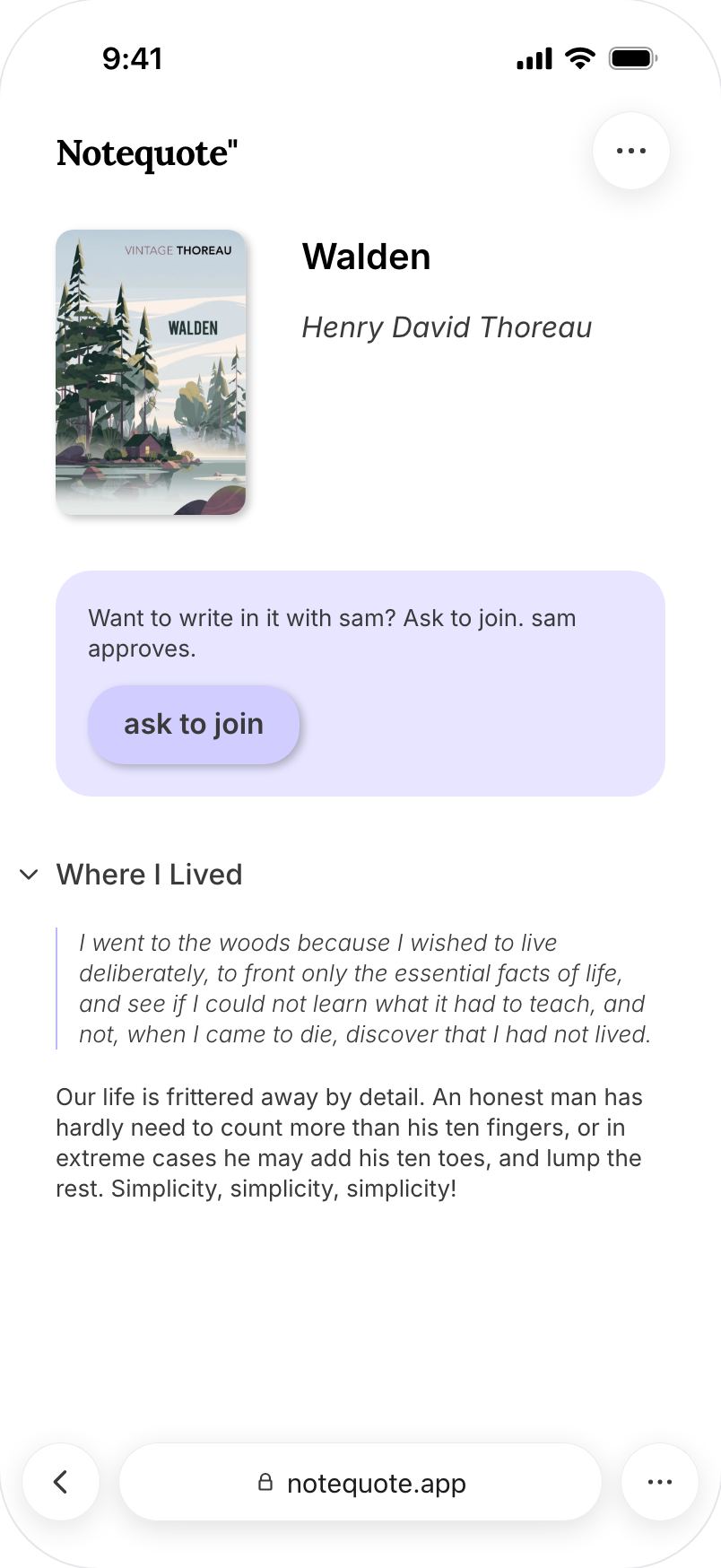
see how it works: Shared notebooksOpen a PDF, Word or Pages file, and its highlights become quotes.
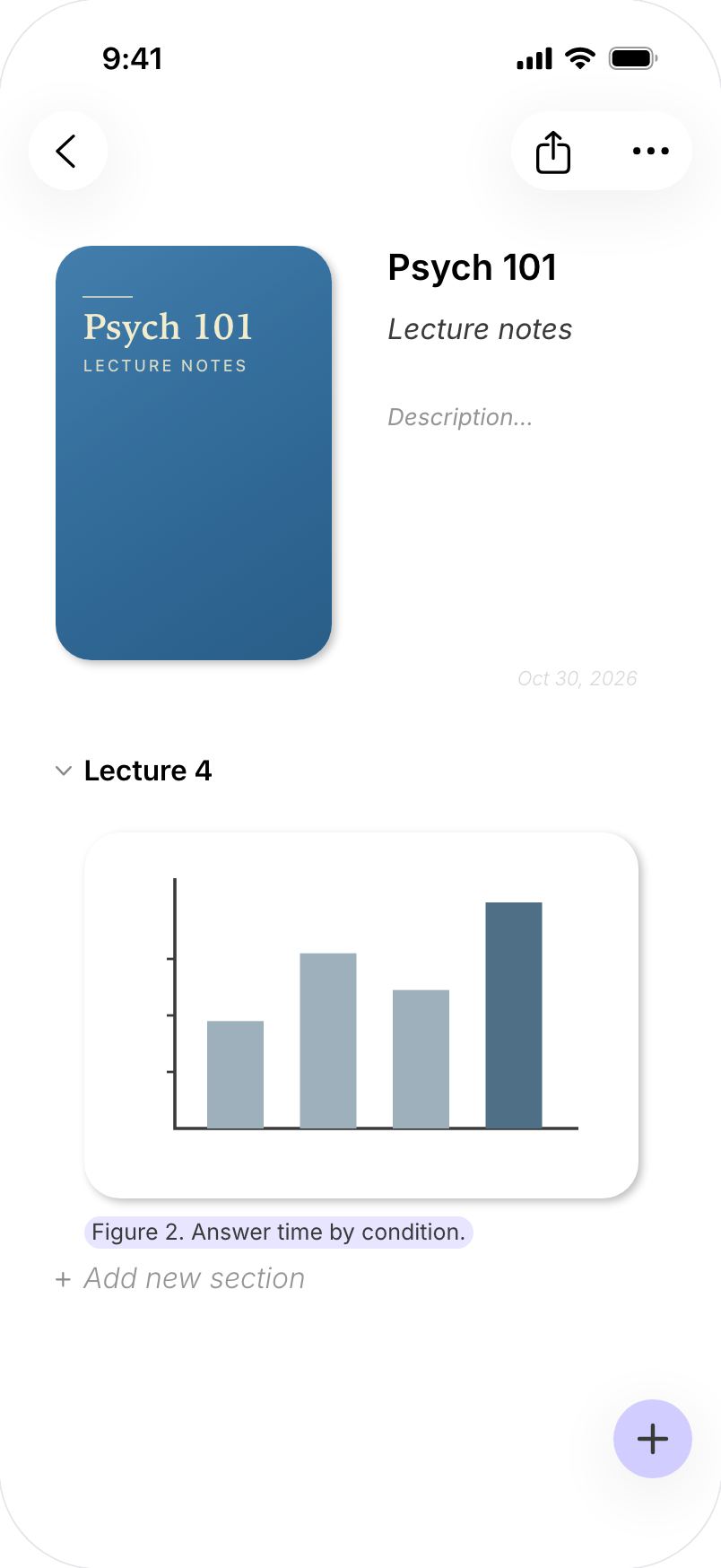
see how it works: PDFs and documentsCharts, tables and pictures in a document come in with their captions.
see how it works: Figures and tablesEvery plan finds marked passages. Paid plans add more scans, media across devices and more sharing options.
FreeKeep your notes for free.
5
page scans a week
 Lite
LiteMore scans, across your devices.
30
page scans a week
 Pro
ProScan without a page limit.
unlimited
page scans
| Feature | Free | Lite | Pro |
|---|---|---|---|
| Your library | |||
| Notebooks, sections and notes | unlimited | unlimited | unlimited |
| Search your whole library | Included | Included | Included |
| Bring back a deleted notebook | 30 days | 30 days | 30 days |
| Camera and documents | |||
| Page scans a week | 5 | 30 | unlimited |
| PDF and document pages a week | 5 | 30 | unlimited |
| Highlight and underline detection | Included | Included | Included |
| Translations on your iPhone a week | 5 | 30 | unlimited |
| Voice notes | |||
| Voice notes | unlimited | unlimited | unlimited |
| Length of one voice note | 10 min | 30 min | 30 min |
| Voice note transcripts a week | 1 | 5 | unlimited |
| Devices and export | |||
| Notebooks, notes and covers | Included | Included | Included |
| Photos and voice notes | this device | Included | Included |
| PDF of any notebook | Included | Included | Included |
| Word and Markdown | Not included | Included | Included |
| Sharing | |||
| Notebooks you share | 1 | 5 | unlimited |
| Join notebooks others share | unlimited | unlimited | unlimited |
| Quote cards | Included | Included | Included |
| Extras | |||
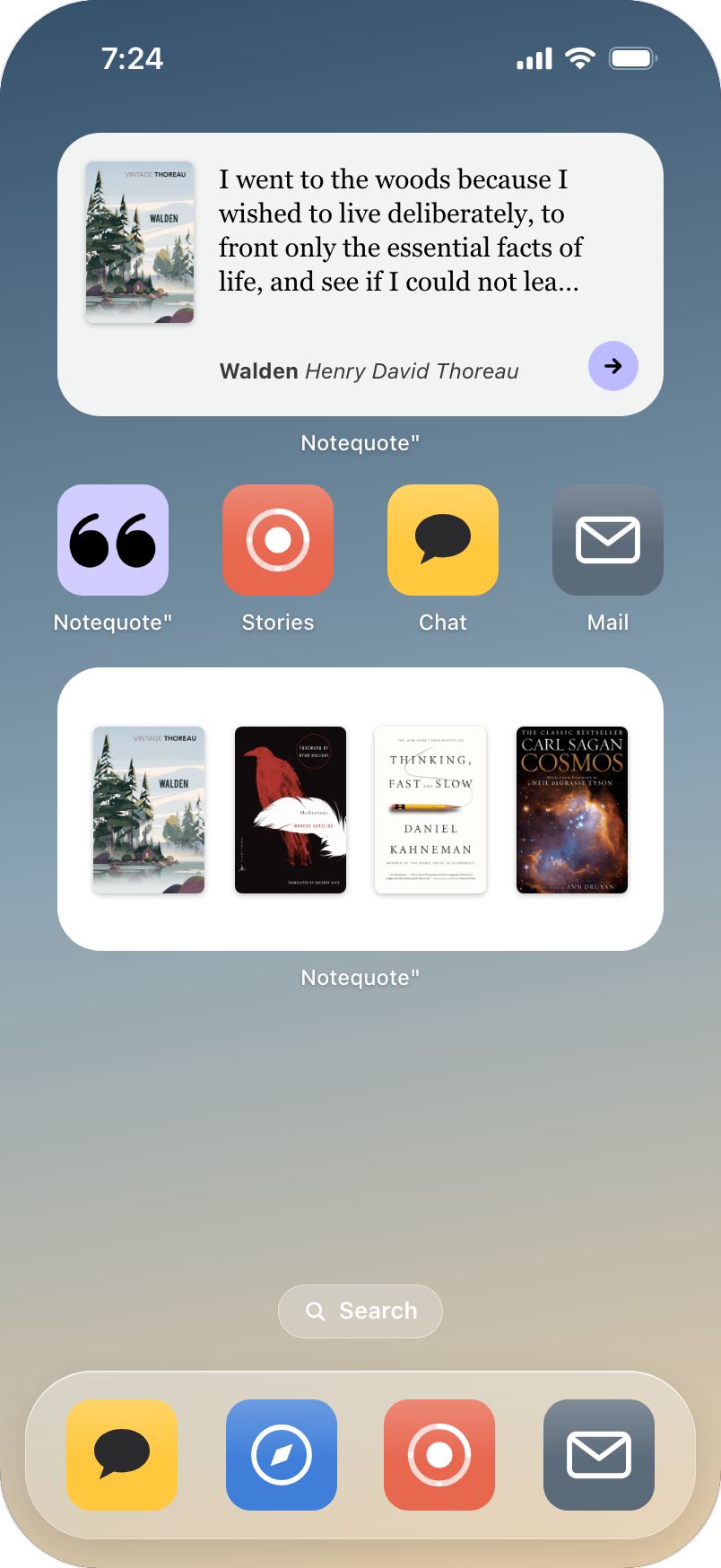
| Widgets | Included | Included | Included |
| Alternate app icons | Not included | Included | Included |
Plan names and limits are the planned launch values and may change. Prices are shown in the App Store before you subscribe. A page counts only when you save something from it. Each weekly allowance starts when you first use it and starts over seven days later.
Notequote"
Your reading, one notebook at a time.
Notequote" comes to the App Store in December 2026. Leave your email and we’ll write when it’s there.
An iPhone or iPad with iOS 26 or later, or a Mac with Apple silicon, and a free Notequote" account. You sign in with an email code, Apple or Google, and you must be 16 or older.
A colored highlighter works best. Pen underlines may be missed. You can check each passage before saving and adjust its edges or select words yourself.
Printed books with horizontal text, in the languages Apple’s text recognition supports on your iPhone. Handwriting and vertical Japanese aren’t supported. The app itself speaks 26 languages at launch, including English, Türkçe and 日本語.
On your iPhone first, and it works offline. Pages are read on your phone, and what you read never goes into analytics. Deleted a notebook by mistake? You have 30 days to bring it back. Export any notebook as a PDF on any plan, and delete your account from inside the app.
A page counts when you save something from it. Retakes, cancellations and failed scans don’t count. Several passages from one page count once.
Notequote" is coming to the App Store in December 2026. The invited TestFlight beta starts on 1 November. Tick the box when you join the waitlist if you’d like to be considered.
The Library shows real editions with their publishers’ covers: Walden (Vintage Classics, 2017) · Meditations (Modern Library) · Thinking, Fast and Slow (Farrar, Straus and Giroux, 2013) · The Design of Everyday Things (Basic Books, 2013) · Cosmos (Ballantine Books, 2013) · Sapiens (Vintage, 2015) · Silent Spring (Mariner Books, 2002). Cover designs belong to their publishers.